Project Creation
Personalizer
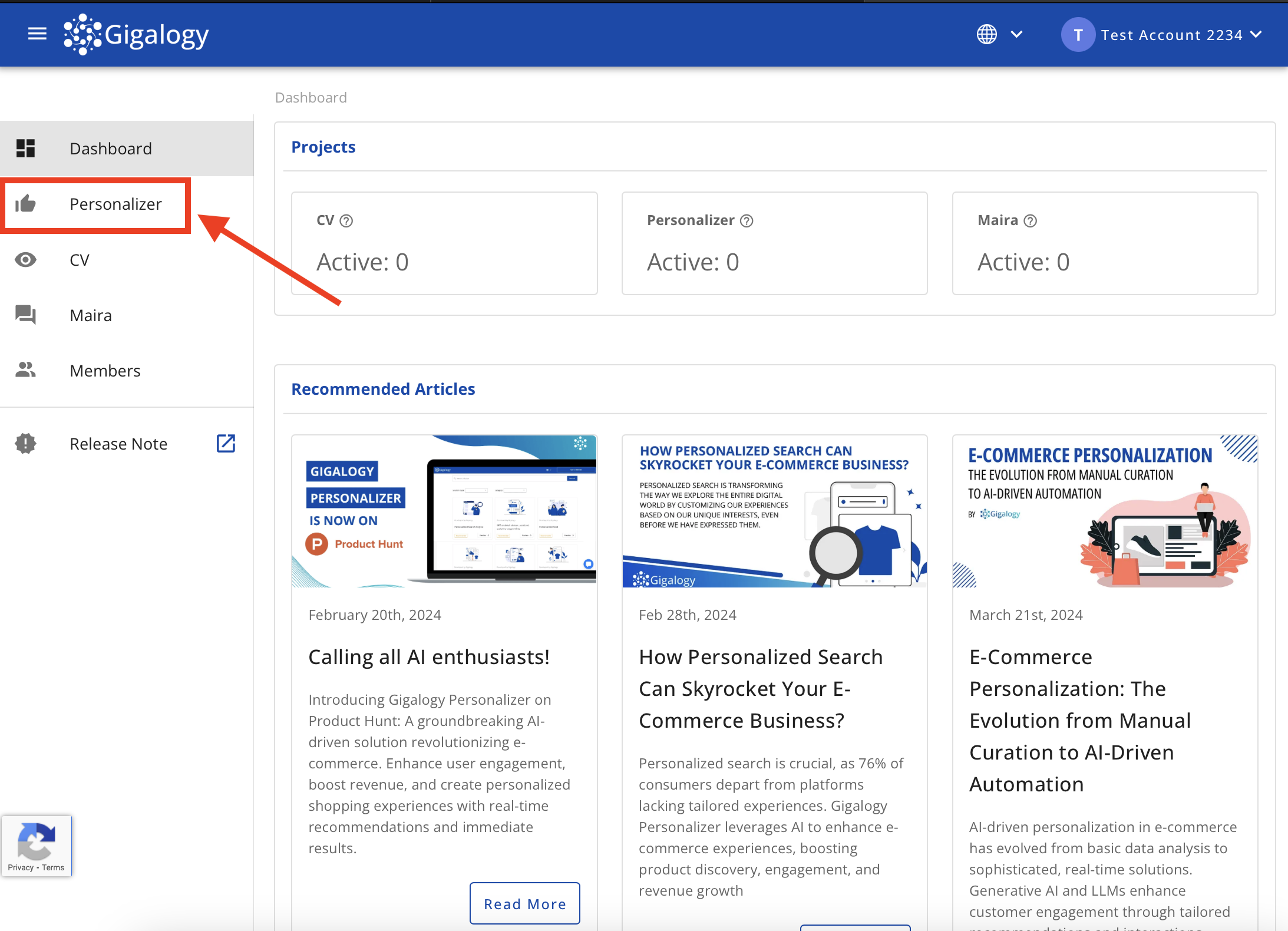
In the platform homepage (dashboard), on the left navigation bar,
GAIP's solutions are listed: Personalizer, CV, Maira.
Click on Personalizer.
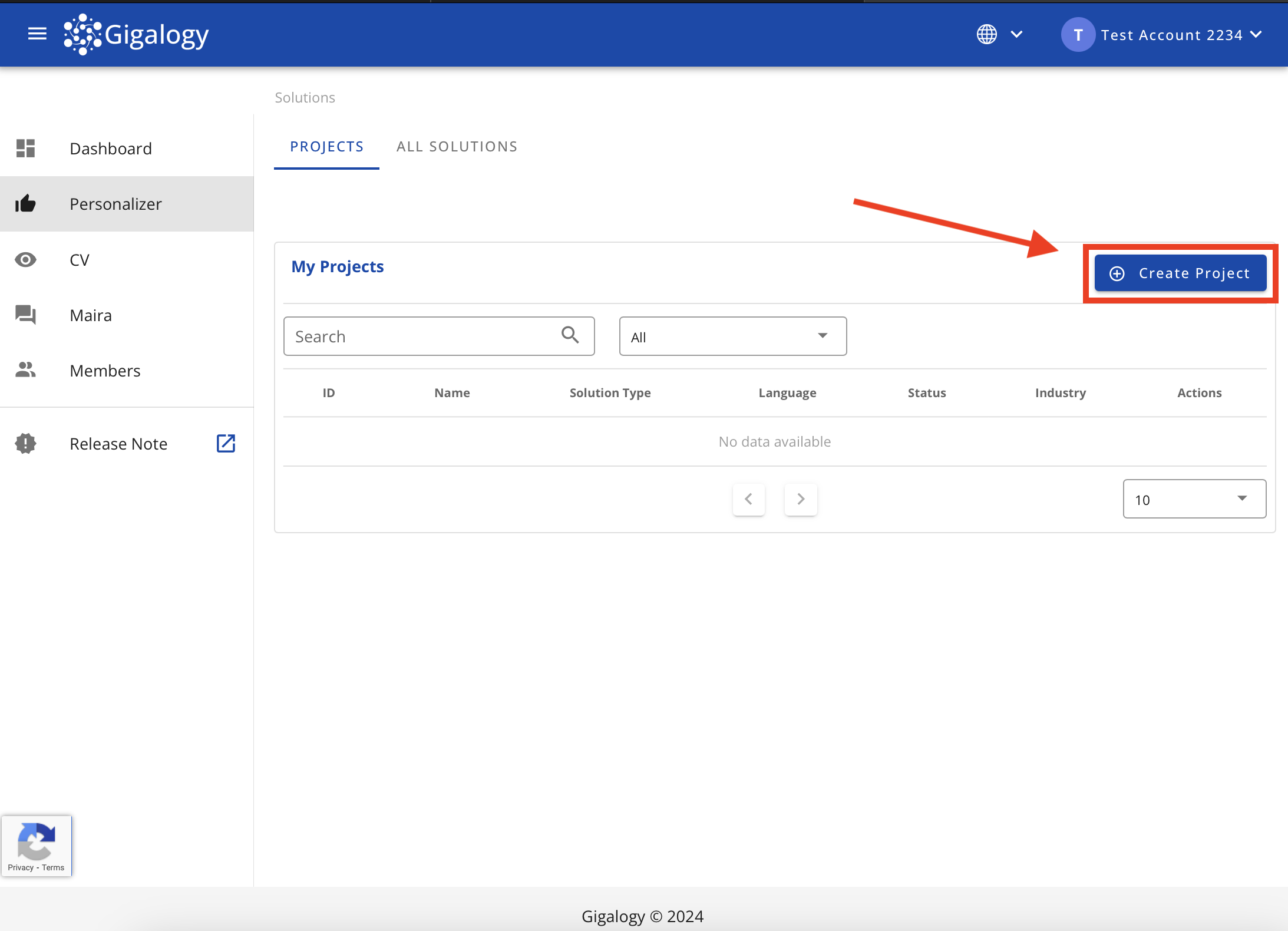
Next, click on the button Create Project to start creating a new project.
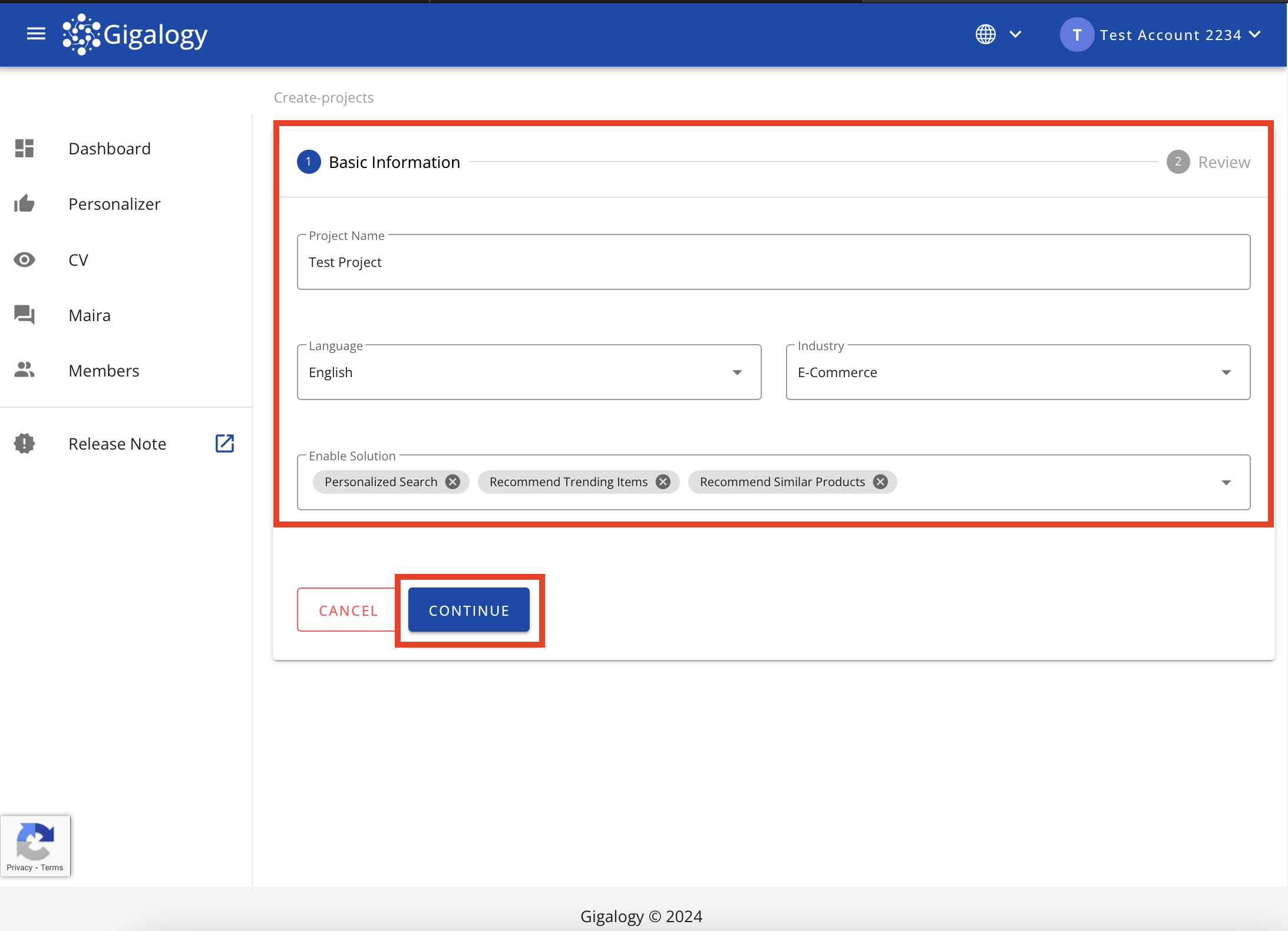
In the next screen, you will be asked to fill in some details about your new project.
- Project name: Can be anything, recommended to use something easier to track later.
- Language: Can be English or Japanese, based on the content of your catalog information
- Industry: Select the industry the project is intended for.
- Enabled solutions: Select the solutions you want to use.
After filling in the information, click Continue
Finally, on the confirmation page, check and click "Save" to complete project creation.
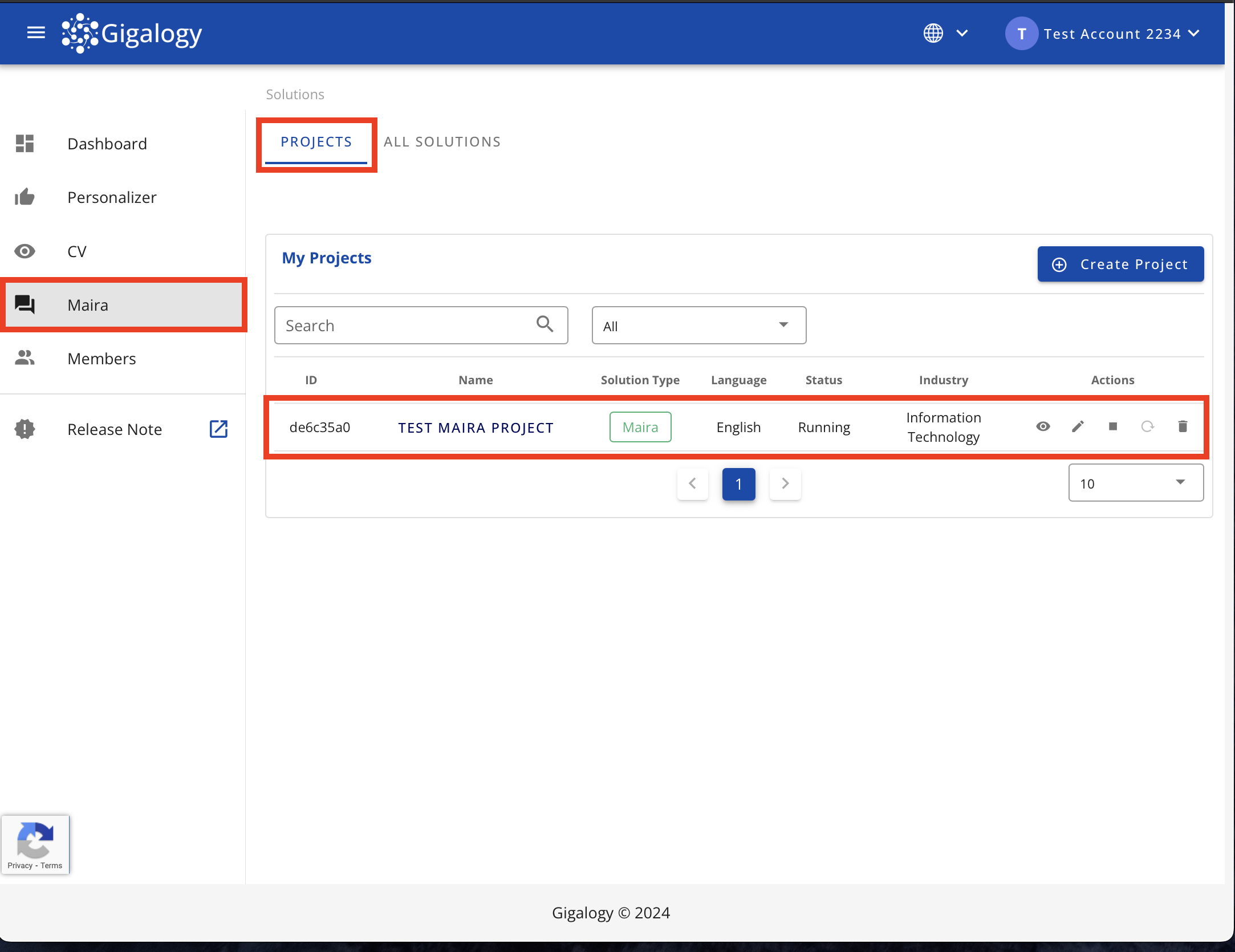
Now when you click on Personalizer in the left navigation bar, you will see the project is listed in the My Projects table.
Maira
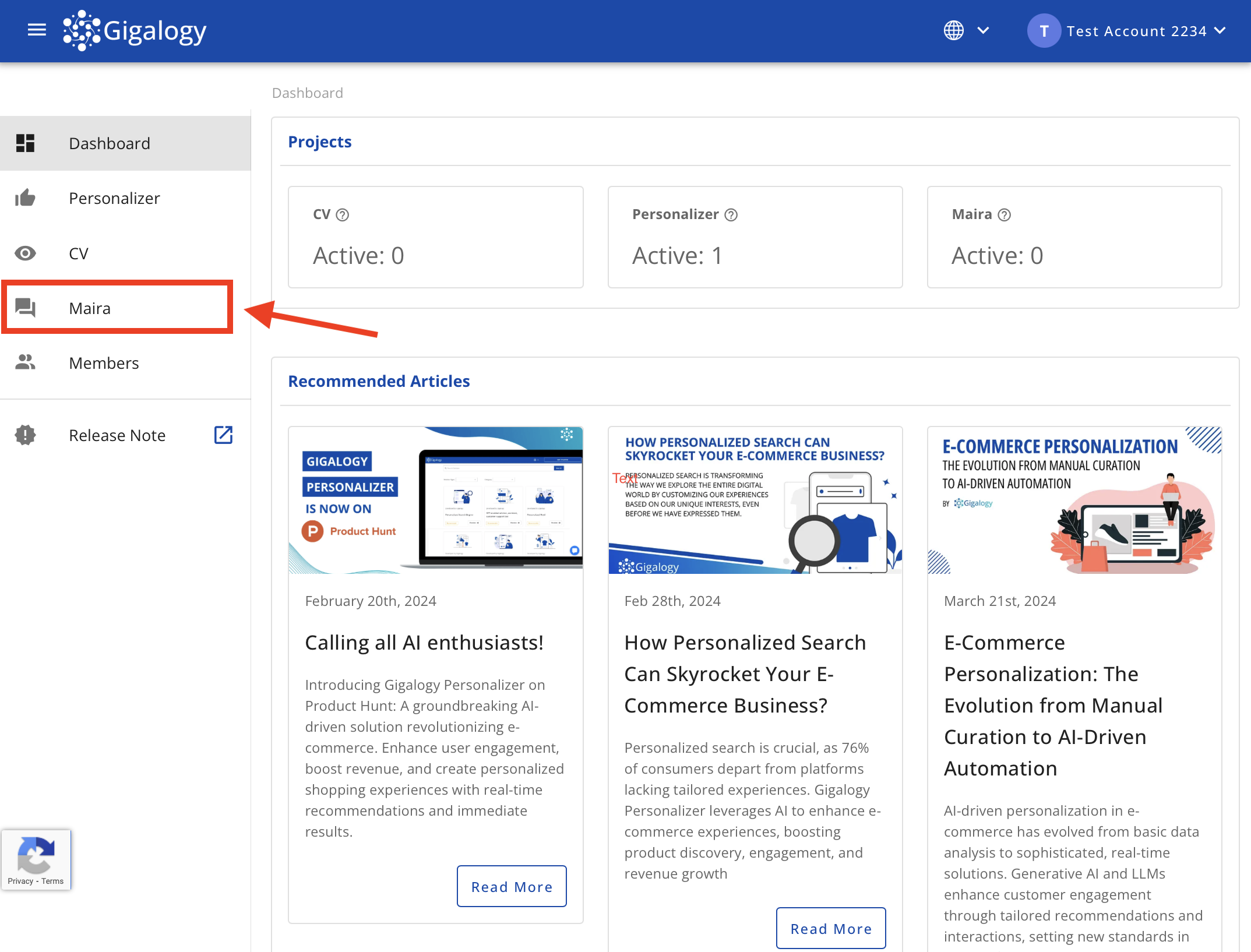
In the platform homepage (dashboard), on the left navigation bar,
GAIP's solutions are listed: Personalizer, CV, Maira.
Click on Maira
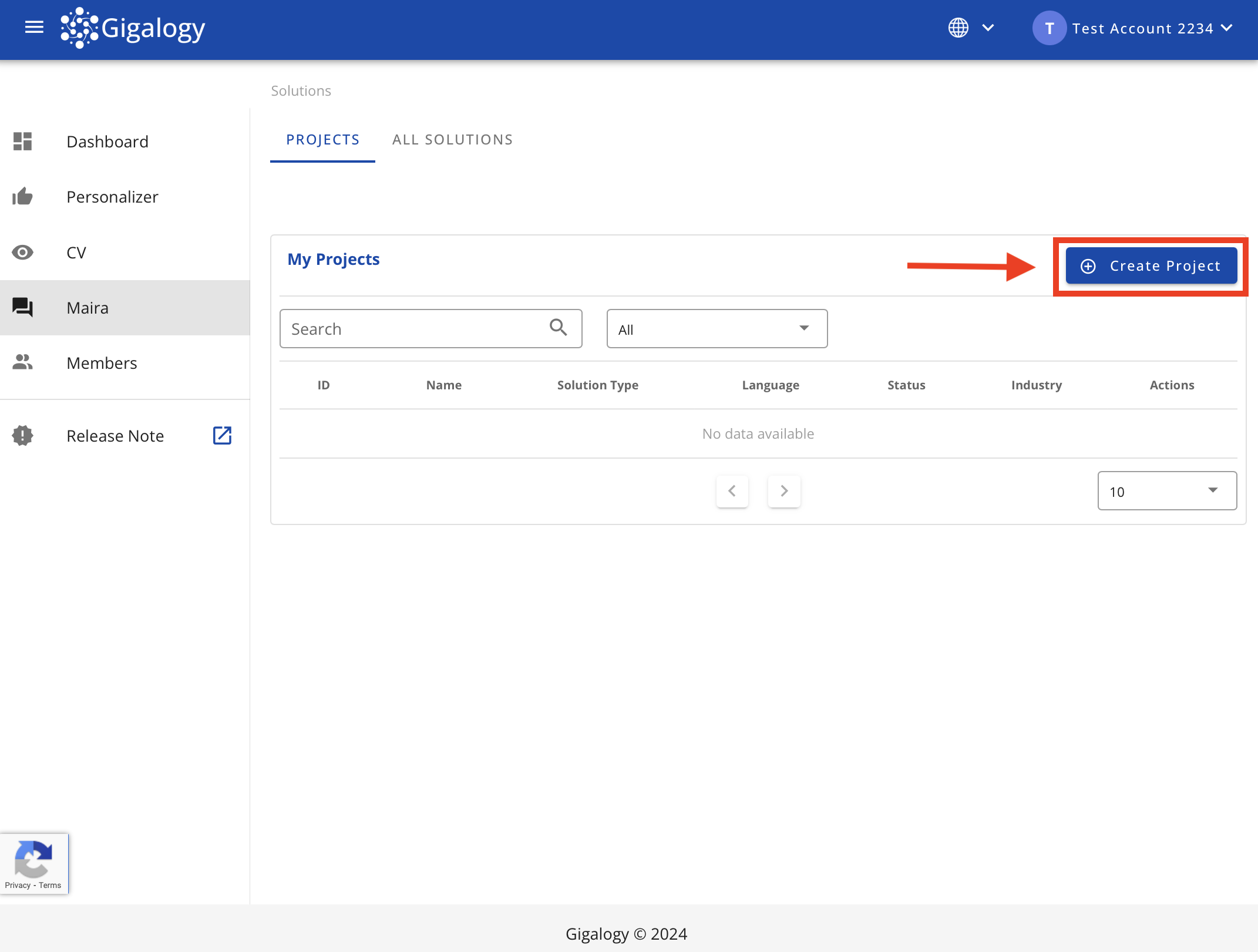
Next, click the button Create Project to start creating a new project.
In the next screen, you will be asked to fill in some details about your new project.
- Project name: Can be anything, recommended to use something easier to track later.
- Language: Can be
EnglishorJapanese, based on the content of your data. - Industry: Select the industry your project is intended for.
- Purpose of the GPT: Fill in the purpose of this GPT. Such as (Internal knowledge sharing or customer support assistant etc.)
- Randomness: Determines whether the answer generation is based solely on the provided data or can also include general data.
- Enabled solutions: Select the solutions you want to use.
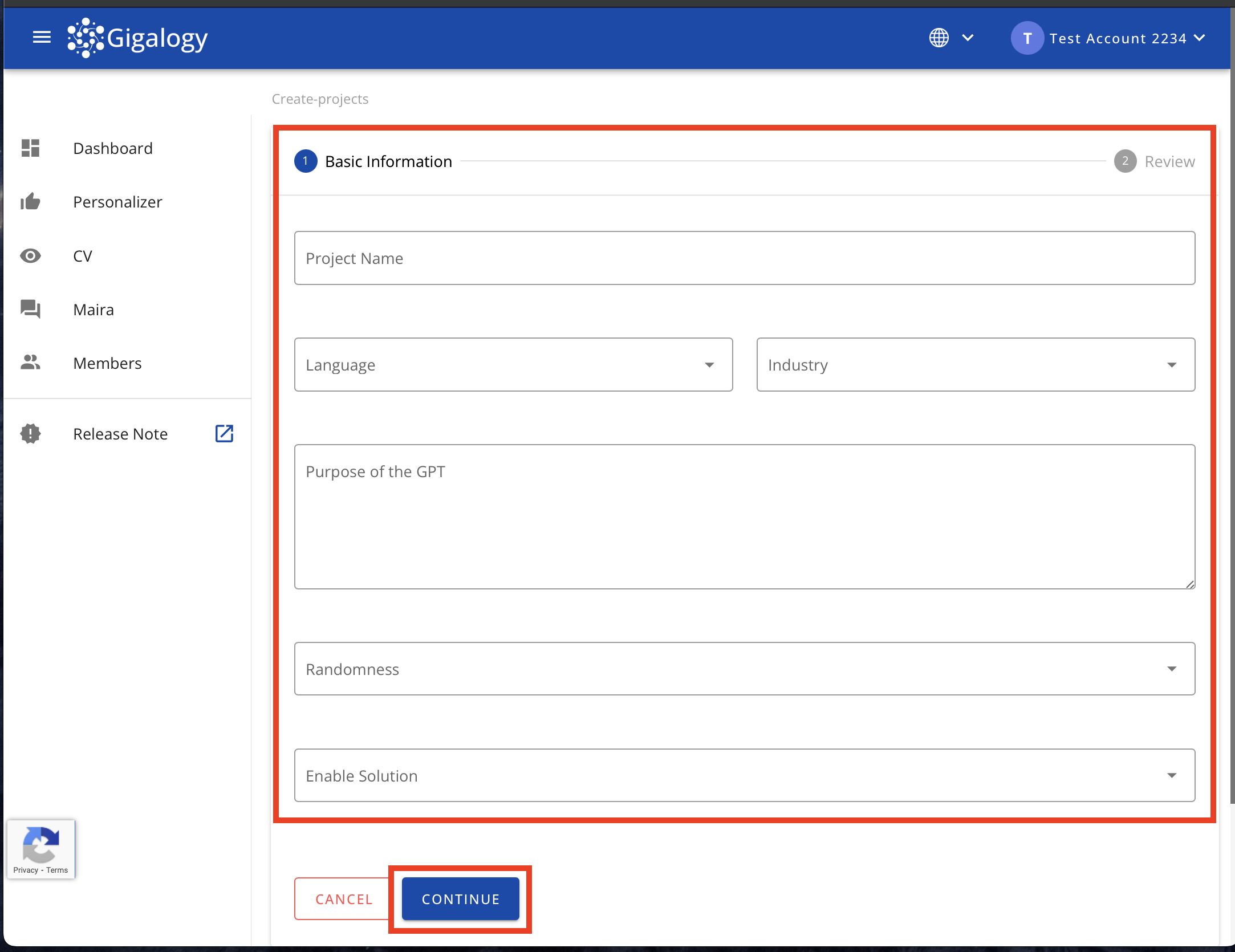
After filling up the details, click Continue
Finally, on the confirmation page, check and click Save to complete project creation.
Now when you click on Maira in the left Navigation bar, you will see the project is listed in the My Projects table.